System-audio first
Use ScreenCaptureKit to capture Mac playback audio without pointing an external microphone at your speakers.
Live captions and real-time translation for the audio already playing on your Mac.
AirTranslate is built for situations where routing audio through a microphone is awkward. It captures Mac playback audio directly, then keeps the source transcript and translation visible while you keep watching or listening.
Use ScreenCaptureKit to capture Mac playback audio without pointing an external microphone at your speakers.
Read source and translated text side by side, swap languages quickly, and keep floating captions above other apps.
Apple Speech and Apple Translation are the baseline path. GPT realtime models only run when you choose them and provide your own API key.
Start a session, play audio on your Mac, and keep the translation close to the content you are already viewing. Saved transcripts remain normal text files on your Mac.
AirTranslate captures the audio already playing on your Mac and shows the source text and translation in real time. Apple frameworks are the default path, and GPT mode turns on only when you provide your own API key.
AirTranslate asks only for the macOS permissions required for capture and transcription. After changing privacy permissions, quit and relaunch the app so the signed app bundle receives the updated authorization state.
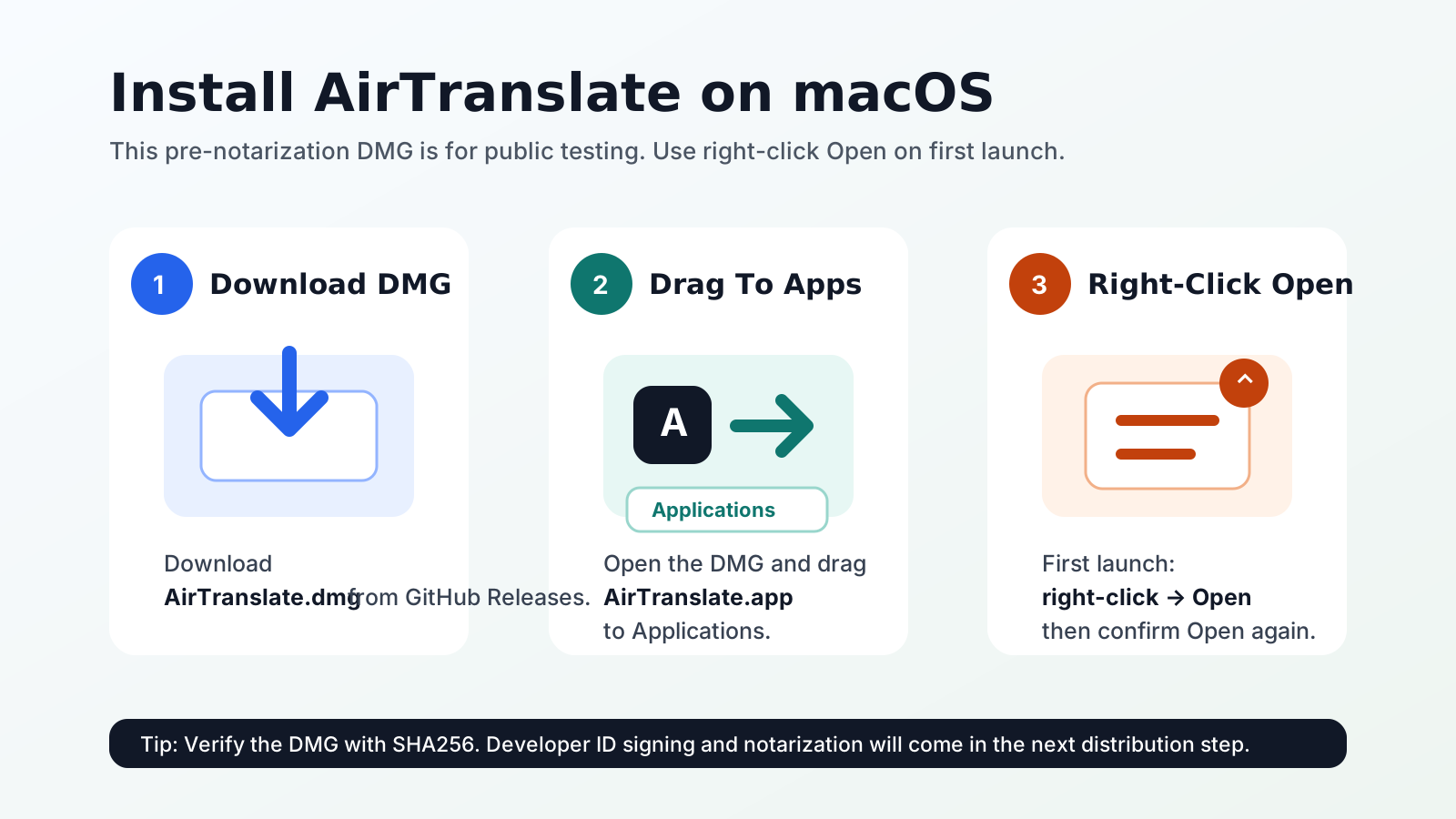
Download the DMG, open it, and drag AirTranslate.app into Applications.
The current open-source build is ad-hoc signed and not yet notarized. If macOS warns about an unidentified developer, Control-click or right-click the app, choose Open, then choose Open again.
Allow Screen Recording, System Audio Recording, and Speech Recognition. Screen Recording is needed for the system-audio capture path; AirTranslate does not save screen frames as recordings.
For Apple Mode, open System Settings, go to General > Language & Region > Translation Languages, then download the source and target languages you plan to use.
The main sidebar keeps the common choices close. Detailed GPT model settings, API key entry, transcript polish, and voice output live in the settings modal.
| Mode | Best for | How it behaves |
|---|---|---|
| Apple Mode | Local-first transcription and translation. | Uses Apple Speech and Apple Translation for the selected language pair. Source-language auto-detect is currently paused while language switching is made safer. |
| GPT Mode | Realtime model-powered transcription or translation. | Uses OpenAI realtime models only after you provide your own API key. Keys are saved in macOS Keychain. |
| Transcribe Only | Source captions without translation. | Records source-language captions when you only need the original transcript. |
| Realtime Translation Only | A direct translated stream. | Uses the realtime translation model path when you want the model to produce translated output directly. |
AirTranslate does not ship with a backend account system. The app keeps ownership clear: Apple Mode uses macOS frameworks, OpenAI calls happen only for GPT-powered modes, and saved transcripts are plain text files on your Mac.
OpenAI API keys are never hardcoded, committed, or included in release packages. You enter your own key only when you want GPT mode.
When saved, the OpenAI API key is stored in macOS Keychain with device-local accessibility settings.
Saved transcripts live under Application Support as normal text files, including separate original and translation files when both are saved.
The DMG is the easiest install path for macOS users. The source code, build scripts, release materials, license, and notice files remain available in the GitHub repository.